
How to Calculate Future Value in Excel
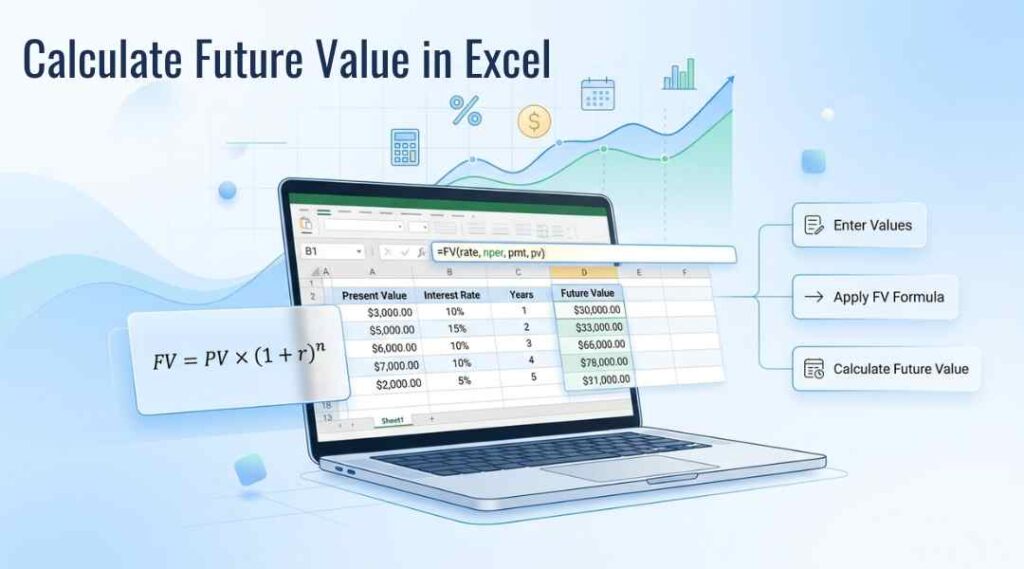
Using one of Excel’s built-in functions is a simple way to calculate future values, whether you are planning your retirement or estimating how much a financial investment will grow. Calculating what an account will look like in ten years is easy enough. So here are the steps you can use to calculate future value in Excel in no time.
The FV Function in Excel
Excel has a dedicated function for this calculation called FV. The syntax is:
=FV(rate, nper, pmt, [pv], [type])
Here’s what each argument means:
- rate: The interest rate per period (e.g., a monthly rate if you’re compounding monthly).
- Nper: The total number of payment periods.
- Pmt: The payment made each period. This stays constant throughout the investment. If you’re not making regular payments, enter 0.
- Pv: The present value, or the lump sum you’re starting with. If omitted, Excel assumes 0.
- Type: It Indicates when payments are due: 0 for the end of the period (default), 1 for the beginning.
Tips for Accurate Results In Excel:
- Match the rate and period. If you want to compound your amount, I consider the rate and number of periods as months. If you mix an annual rate and monthly periods, you’ll get an incorrect answer.
- Utilize cell references, rather than raw data. Instead, type =FV(6%, 10, 0, -10000), put your rate, term and principal in separate cells (like B1,B2,B3) and reference them: = FV(B1, B2, 0, -B3). That way testing becomes very easy and you never have to worry about managing different scenarios.
- Watch your sign conventions. This trips up more people than any other part of the formula. Cash you invest or pay out should be negative; cash you receive should be positive.
- Use the “type” argument if payments occur at the start of a period. For example, if you contribute to a retirement account on the first of each month rather than the last, set type to 1 for a slightly higher (and more accurate) result, since each payment has one extra period to earn interest.
How you can Build a Simple Future Value Calculator In Excel?
You can simply paste the worksheet into your Excel and calculate it according to your values.
| Cell | Label | Value |
| B1 | Annual Interest Rate | 6% |
| B2 | Years | 10 |
| B3 | Monthly Contribution | 200 |
| B4 | Starting Amount | 5000 |
| B5 | Future Value | =FV(B1/12, B2*12, -B3, -B4) |
You can now change the inputs to see instantly how your future value will change. This is a great way to compare savings and investment strategies.
It’s a simple formula, but the FV function in Excel is one of its most powerful tools for financial planning. You can model anything from loan repayments to retirement savings with only a few inputs. You can also try our future value calculator to get your future monthly compounding data in a single click.

An Accounting & Finance graduate currently pursuing an advanced Master’s in accounting and finance degree at Teesside University (UK), Anfal leads our rigorous quality assurance pipeline. She systematically audits the algorithmic calculations behind our tools, cross-checking every output against institutional benchmarks and academic financial literature to eliminate calculation drift.